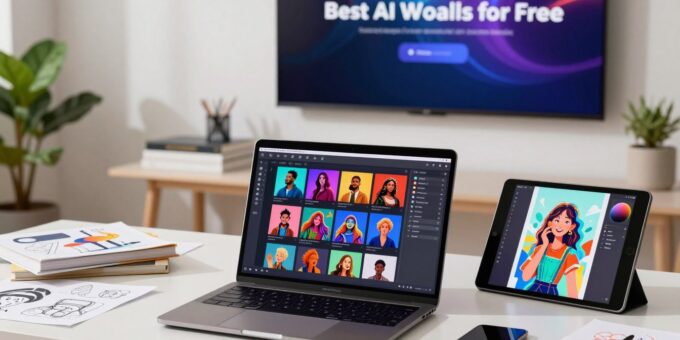
Quick note: if you are in India and curious about creating images from text, this guide lays out what “free” usually means and what you can do right now without paying.
Many platforms let you turn a short prompt into photorealistic photos, illustrations, or marketing art in seconds. Results change by model, prompt detail, and platform limits.
Free tiers often come with limited credits, slower queues, watermarks, or public galleries. Knowing those trade-offs helps set realistic expectations.
This article delivers a practical list of free-friendly generators and shows how to pick one based on use: study notes, social posts, ads, slides, or concept art.
We also cover how to prompt well, how to judge outputs, and when upgrading is worth it. Expect tips on ethics, copyright, and privacy, plus notes on styles — from photoreal to cartoon to pixel art — and why text inside images can still be hit or miss.
Why free AI image generators are worth trying right now
Text-driven generators now let anyone sketch visual ideas in minutes, from quirky scenes to polished marketing assets. They speed ideation, help you make quick drafts, and cut cost compared with commissioning every concept.
With a simple text prompt you can produce blog hero visuals, thumbnail mockups, poster concepts, product promo art, or stylized illustrations. Different models lean toward photoreal or illustration, so one prompt can yield many directions.
In India, students use these systems for class slides and project visuals. Creators produce social posts faster. Professionals find them handy for decks, ads, and internal comms when time is tight.
- Practical gains: faster ideas, cheaper tests, and rapid iteration.
- Trade-offs: free plans often limit credits, resolution, and speed—expect slower queues and occasional watermarks.
- Prompt care: good prompts matter more on free tiers to reduce re-rolls and save credits.
Finally, consider the workflow fit: design-first platforms smooth publishing, while model-first setups give deeper control when you need precision in the creative process.
What AI image generators are and how image generation works
Text prompts become visuals because a model has learned how words map to pixels during large-scale training. An image generator is software that uses machine learning to transform prompts into new images based on patterns seen in its training data.
From prompts to pictures: diffusion and other approaches
Most systems use diffusion: the model starts with noise and then refines that noise through many small steps until a clear image appears.
This stepwise refinement makes it easier to guide composition and color. Some platforms use autoregressive approaches instead, predicting pixels or tokens in sequence. Each version trades off speed, control, and fidelity.
Why training and dataset choices shape styles and results
Models trained on different collections of paired captions and photos or illustrations develop distinct styles. One model may bias toward cinematic color and realistic faces. Another may favor illustration-like strokes or cleaner typography.
That is why two platforms can feel different even when they claim similar capabilities: the underlying model, safety filters, and default settings all shape results. It also explains common questions about inconsistency—odd hands, warped faces, or perspective errors often happen when prompts are vague or overcrowded with demands.
Practical takeaway: understanding the technical background helps you pick the right model and write prompts that reduce re-rolls and improve final images.
AI platform vs AI model: what you’re actually choosing
Your choice often comes down to convenience versus control. Platforms wrap models in a user-friendly front end. They add templates, templates, credits, and export options that speed publishing.
Models are the underlying algorithms trained on large datasets. Different models show distinct style tendencies and levels of controllability. Picking a model affects raw capability and the final look.
Why platforms matter:
- They streamline prompting, batching, upscaling, and social-ready exports.
- They hide complexity so creators on laptops can produce work quickly.
Why open-source options matter:
Local installs like Stable Diffusion give privacy, offline workflows, and deep parameter control. You need suitable hardware and some setup comfort, but marginal costs fall with sustained use.
| Choice | Strength | When to pick |
|---|---|---|
| Hosted platforms | Easy UX, credits, quick exports | Laptop creators, social posts, fast drafts |
| Open-source models | Privacy, deeper tuning, lower long-term cost | Agencies, power users with GPU setups |
| Hybrid (cloud + local) | Flexibility and backup | Teams needing occasional heavy runs |
Practical tip: in India, casual creators often prefer web platforms. Agencies or serious hobbyists may invest in a GPU and local stable diffusion installs. Later sections will dig into DreamStudio and local setups so you can decide which option fits your constraints.
How we evaluated tools: quality, prompt adherence, and free plan limits
We scored each platform using clear, repeatable checks so you can compare results fast. The framework focuses on three main areas: image quality, prompt accuracy, and practical limits on free plans.
Image quality checks looked at realism, fine detail, and consistency across variations. Common tells—like overly smooth skin or warped limbs—were flagged when they hurt final results.
Prompt accuracy measured whether the generator included requested objects, composition, and style cues. We ran multiple prompts to test consistency and tracked how often outputs matched intent.
Typography and text got a dedicated criterion. Many models still misspell or distort letters, so we rated tools by how reliably they render logos, multi-line copy, and clean layouts.
- Speed & iteration: we noted queue time and the credit cost per retry.
- Customization options: aspect ratio, negative prompts, seed control, and style presets were checked.
- Safety & blocked prompts: we recorded limits on photoreal people and public figures.
| Criterion | What we measured | Why it matters |
|---|---|---|
| Image quality | Detail, realism, coherence | Better results reduce re-rolls and editing time |
| Prompt adherence | Elements included, style fidelity | Ensures the prompt yields the intended composition |
| Typography | Letter clarity, layout, logos | Critical for posters, thumbnails, and ads |
| Plan limits | Credits, daily boosts, starter packs | Affects how many edits you can afford |
Credits and caps: we noted specific freebies: Microsoft Copilot gives 15 boosts/day (100 with Pro) and DreamStudio often grants 25 starter credits (~125 small images). These one-off or daily boosts shape whether a free plan is practical for heavy iteration.
Every tool later in the article is scored with this same rubric so you can pick the right option based on your needs and expected workflow.
Prompting guide for better results with free image generators
A well-built prompt reduces guesswork and makes it easier to get usable visuals quickly. Start with a clear template and add only what matters to the composition.
Reusable prompt template: subject + environment + lighting + camera/style + composition + constraints (what to avoid).
Style keywords you can paste
- Photorealistic — use for product promos and D2C images.
- Pixel art — compact sprites and retro thumbnails.
- Cartoon — friendly, high-contrast social posts.
- Cinematic lighting / studio product photo — when mood and detail matter.
Iterate smartly
Change one variable at a time: angle, lens, palette, or background. This saves credits and makes it simple to spot what improved the images.
Fixes and workarounds
- Ask for “natural hands,” “five fingers,” and “symmetrical face” to improve anatomy.
- Use “single vanishing point” or “architectural photography” to avoid impossible perspectives.
- Generate visuals without text, then add copy in Canva or Adobe; use Ideogram when text must be inside the design.
India tip: try prompts for festival posters, coaching thumbnails, D2C product shots, or clean LinkedIn carousels to match local use cases.
Best ai tools for image generation free: curated picks and who each tool is for
Below is a curated list of popular platforms, each with a one-line best for summary to help you choose quickly.
Microsoft Copilot Designer (DALL‑E 3)
Best for: beginners who want a chat-like on-ramp with daily boosts and simple edits.
Stable Diffusion via DreamStudio
Best for: people who want an easy hosted route to stable diffusion without setup; note credits and occasional variability in prompts.
Local Stable Diffusion install
Best for: privacy-conscious creators and power users who can handle hardware and setup for full control.
Leonardo.Ai
Best for: style experimentation—lots of presets and fine-tuning that suit concept art and marketing visuals.
Ideogram
Best for: text-heavy posters, ads, and social media thumbnails where readable text matters.
Adobe Firefly & Canva
Best for: designers who need smooth handoff to photo edits, templates, and social publishing workflows.
Nano Banana (Google Gemini)
Best for: quick edits and variations of existing photos; note that some outputs show a visible watermark.
| Platform | Strength | Who it’s for | Notes |
|---|---|---|---|
| Copilot Designer | Chat UI, DALL‑E 3 access | Beginners, quick social posts | Daily boosts; easy edits |
| DreamStudio (Stable Diffusion) | Hosted SD; adjustable params | Casual power users | Starter credits; prompt variance |
| Local Stable Diffusion | Privacy, full control | Agencies, advanced hobbyists | Needs GPU and setup |
| Ideogram / Leonardo / Firefly / Canva | Text accuracy / styles / workflow | Designers, marketers | Pick based on text needs and Adobe integration |
Microsoft Copilot Designer with DALL-E 3: the easiest free way to generate images
Copilot Designer puts DALL‑E 3 behind a chat-like interface that anyone with a Microsoft account can use. The system returns multiple images per prompt and aims for clear, usable compositions for marketing and social use.
How to get started with prompts and boosts
Sign in with your Microsoft account, open Designer mode, and type a short prompt. Start simple, then add constraints like mood, palette, or crop.
Boosts are daily fast-renders (about 15). Use them for urgent runs; when boosts run out, generation slows and queues may grow under the free plan.
What boosts mean in practice
Boosts give quicker turnaround and higher priority. After they finish, you can still request images, but wait times and variability increase, which affects rapid iteration.
Strengths and limitations: blocked prompts and realistic people
DALL‑E 3 gives strong prompt understanding and reliable composition for common marketing visuals. This image generator produces consistent results for banners and thumbnails.
However, some prompts are blocked, including certain photorealistic depictions of real people or sensitive subjects. Also, photoreal faces can look slightly waxy, so portraits may need alternate approaches.
Built-in editing options for fast social outputs
The Designer includes simple edits: crops, filters, and quick retouches. Export several sizes to fit platforms and save time on post-production.
This tool speeds up social media workflows by letting you generate variations and export platform-ready images in minutes.
Quick prompt patterns for India use cases
- “Clean flat illustration for a SaaS carousel” — simple layout, bold text area.
- “Diwali sale banner background” — warm tones, festive motifs.
- “Minimalist product backdrop” — neutral palette, soft shadows.
Stable Diffusion: open-source image generation with serious customization
Stable Diffusion gives you deep control over model checkpoints and output details, so you can shape a distinct visual style that matches brand needs. This open approach suits creators who need repeatable results and a wide set of options.
DreamStudio credits explained and what “free credits” typically cover
DreamStudio usually grants ~25 starter credits, which equates to roughly 125 small images under common settings. These free credits are one-off starter amounts; they do not auto-reset daily.
After starter credits, you buy more credits per render. Expect good detail and polish at default settings, but occasional prompt misses—missing objects or duplicated subjects can appear.
When to use a local install for better control and privacy
Run Stable Diffusion locally when the work involves confidential client assets, internal brand experiments, or when you need exact repeatability. Local installs let you change checkpoints, use negative prompts, control steps, and apply custom training or fine-tunes.
Local generation reduces long-term costs in India if you have suitable GPU hardware. For frequent creators, that can beat ongoing platform charges.
Business suitability basics under an OpenRAIL-style license
Stable Diffusion generally ships under an OpenRAIL-style license that permits commercial use with restrictions. Teams should review compliance and any restricted content rules before publishing photos or client deliverables.
| Option | When to pick | Key trade-offs |
|---|---|---|
| DreamStudio (hosted) | Quick setup, no GPU needed | Starter credits; good quality; occasional prompt misses |
| Local Stable Diffusion | Privacy, repeatable styles, heavy customization | Requires GPU and setup; lower long-term cost |
| Hybrid (export then edit) | Generate in SD, finalize in Canva/Adobe | Best typography and layout control; two-step workflow |
Leonardo.Ai: free plan creativity with lots of model and style options
Leonardo.Ai sits between simple web generators and local installs. It gives more controls than chat-only interfaces while staying easier than a full GPU setup.
This platform excels at hyper‑real renders, concept art, and marketing visuals. In India, creators use it for game conceptboards, D2C product shots, and campaign mockups.
When Leonardo shines
Use it when you need quick style play and high image quality without heavy setup. The platform helps you test cinematic, illustration, and 3D looks from one prompt.
Settings that change results
- Aspect: pick ratios for Reels, thumbnails, or banners.
- Style presets: lock a style early to keep consistency.
- Iterations: request several variations, then refine the top pick.
| Setting | Why it matters | How to use it |
|---|---|---|
| Aspect ratio | Platform fit and crop | Choose target ratio before rendering |
| Style preset | Consistent visual language | Lock one style, then tweak details |
| Iterations | Explore composition and lighting | Generate 4 variations, update prompt |
Practical tip: lock a style, vary composition, then refine lighting and background to reach the best image with fewer credits. Watch usage caps and use a design app for complex text layouts.
Ideogram: best image generator choice when your image needs clean, readable text
When legible headlines matter, pick a generator that prioritizes crisp typography over painterly flair. Ideogram is widely recognized for accurate text rendering compared with most diffusion-based systems. That makes it ideal when a headline, offer, or CTA must read clearly at a glance.
Use cases that benefit most
Think YouTube thumbnails, event posters, coaching banners, product promo tiles, and social media ad creatives. In these formats, clear text improves clicks and conversions.
Writing prompts for multi-line copy and layout control
Be explicit: put exact copy in quotes, e.g., “Mega Sale — Up to 50% Off” and then add hierarchy like “headline large, subtext smaller.” Specify alignment (center/left) and spacing to lock the layout.
- Use quoted lines for exact copy.
- Request hierarchy: “big headline + smaller subhead”.
- Define alignment and spacing: “centered, 20px margin, clear text-safe zone”.
Layout tactics to keep text readable
Ask for “clean margin,” “top header area,” and “high contrast background” to avoid collisions. Add “text-safe zone” to keep icons and faces away from headlines.
What to expect on the free plan
Free plan generations often appear in public galleries by default and can come with daily queues. Download limits may restrict resolution or count, so expect to export a base asset rather than a print-ready file.
Practical workflow recommendation
Generate a strong typographic base in Ideogram, then export the visual and finalize brand fonts, kerning, and exact spacing in Canva or Adobe. This gives readable drafts quickly and lets you meet precise brand standards during final design.
Adobe Firefly, Canva, and Gemini: design-first platforms with AI image tools
Design-focused services now bundle generative features directly into familiar editors, so you spend less time exporting and more time posting. These choices suit creators who need ready-to-post visuals with minimal handoff.
Adobe Firefly: photo integration and brand-safe workflows
Adobe Firefly plugs into Photoshop-style workflows, making it simple to blend generated art with existing photos. It offers a more brand-safe approach and includes limited free credits to start.
Canva: templates, resizing, and fast publishing
Canva embeds a generator inside a template-led editor. Use one-click resizing and layout presets to make social media posts, WhatsApp creatives, and ad tiles quickly.
Gemini Nano Banana: quick edits and photo variations
Google’s Nano Banana is strong at editing existing photos and making fast variations. Note the visible watermark on outputs under the free plan, which can limit professional use.
- Design advantage: fewer export steps, correct sizing, faster publish.
- India workflow tip: build a promo background in Firefly, lay out in Canva, then use Gemini for quick photo tweaks.
Using free AI image generators responsibly for media, work, and commercial use
Creators and teams must treat generated visuals like any outsourced asset: check rights, consent, and context before publishing in media or as client deliverables.
Copyright and usage rights: what to check before you publish
Read the generator’s licence and terms. Some platforms grant commercial use; others limit resale or require attribution.
Practical step: save the terms snapshot and record which platform produced each image for audits.
Ethics and misinformation: avoiding non-consensual and deceptive images
Avoid creating photoreal depictions of private people or staged political content. These risk harm and legal trouble.
Safety filters and blocked prompts signal sensitive areas; treat them as warnings, not annoyances.
Privacy and client confidentiality when prompts include sensitive details
Don’t send proprietary product specs or campaign plans to public platforms. Use local generation or redact specifics when possible.
- Team checklist: rights, disclosure, watermarking, brand safety, policy compliance.
- Keep a simple approval workflow before media use.
| Risk area | What to check | Recommended action |
|---|---|---|
| Copyright | Platform licence and restrictions | Document terms; seek legal sign-off for campaigns |
| Ethics | Real-person realism; political content | Avoid non-consensual images; add disclosure if needed |
| Privacy | Client data in prompts | Use local runs or anonymize prompts |
Conclusion
, Generators are improving fast, and practical choice wins: pick a platform that matches your workflow and budget. This roundup of the best ai tools for image generation free highlights options by need so you can act, not guess.
Quick guide: Copilot is easiest to start; Stable Diffusion gives deep control; Ideogram renders readable text; Canva and Firefly speed design handoffs; Gemini Nano Banana suits photo edits.
Remember that most image generators offer usable no-cost access but impose limits like credits, boosts, watermarks, or public galleries. Practice prompts, test 2–3 platforms for a week, and pick the one that fits your process.
Final note: confirm usage rights, avoid deceptive visuals, and keep client or private data off public services.